
 Digital Recipe
 Digital Planner
 Travel Planner
free for your planner
Free Digital Planner Stickers for GoodNotes
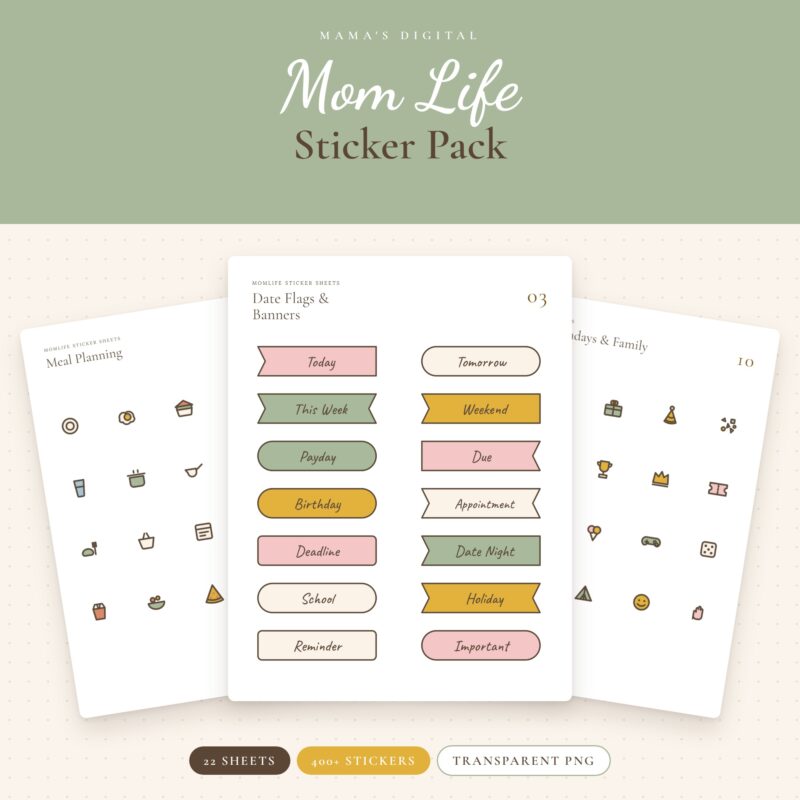
Two free sticker packs made for moms: more than 400 Mom Life stickers and a full year of monthly sheets. Transparent PNGs that work in GoodNotes, Notability, Samsung Notes and other planner apps. Below: what’s in each pack, how to download, and exactly how to use them.
The short answer
Yes, they’re really free. Add a pack to your cart, check out at $0 (no payment details), and download the ZIP file. Unzip it, import the PNG sheets into GoodNotes or your planner app, and cut out the stickers you want with the lasso or crop tool. Downloads don’t expire, so you can come back for them on a new device.
The two packs
Which free pack should you download?
Most moms grab both. If you only want one, here’s how they differ:
| Mom Life Stickers | Monthly Stickers | |
|---|---|---|
| What it is | 22 themed sheets, 400+ hand-drawn stickers | One sticker sheet for each month of the year |
| Colors | Blush, sage, mustard, terracotta and dusty blue | Soft pink |
| Best for | Meal plans, chores, school, health, family fun, seasons | Monthly spreads, headers and goal pages |
| Includes | Checkboxes, arrows, date flags, banners, icons | Functional and decorative stickers per month |
| File | One ZIP with 22 PNGs (1700 × 2200 px) | One ZIP of transparent PNG sheets |
| Price | Free | Free |

Inside the Mom Life pack
All 22 sheets, and what to use them for
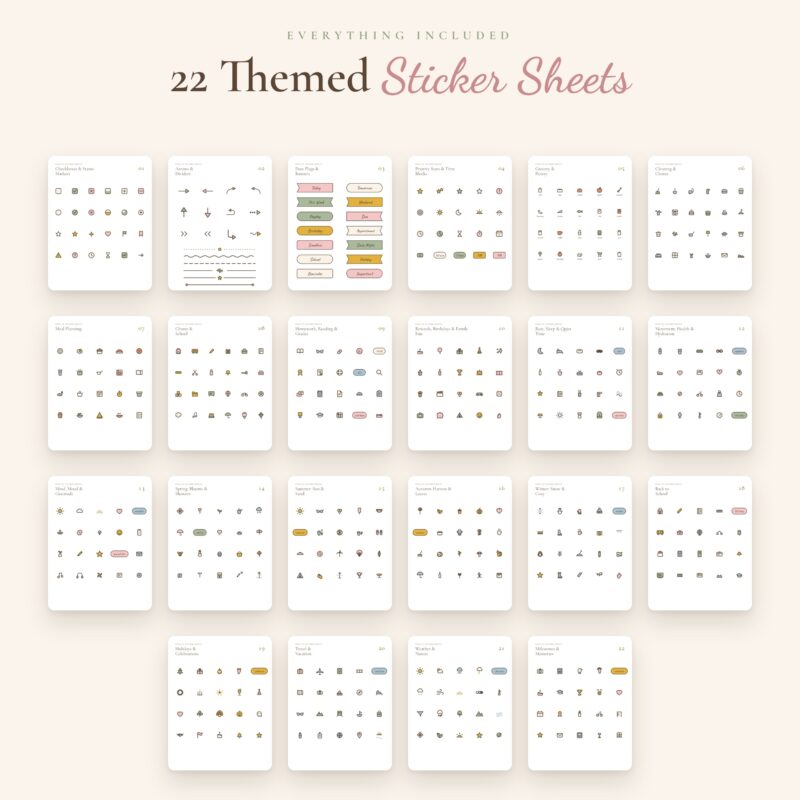
The sheets are grouped by job, so you can find the right sticker fast. Here is every sheet with a real use for it:
| # | Sheet | Use it for |
|---|---|---|
| 01 | Checkboxes & Status Markers | To-do lists and tracking what’s done |
| 02 | Arrows & Dividers | Splitting a page into sections, pointing to notes |
| 03 | Date Flags & Banners | Today, Payday, Due, Date Night, Holiday |
| 04 | Priority Stars & Time Blocks | Marking your Top 3 and blocking out time |
| 05 | Grocery & Pantry | Shopping lists and pantry checks |
| 06 | Cleaning & Chores | Cleaning schedules and chore charts |
| 07 | Meal Planning | Weekly meal plans |
| 08 | Chores & School | Kids’ responsibilities and school days |
| 09 | Homework, Reading & Grades | Homework trackers and reading logs |
| 10 | Rewards, Birthdays & Family Fun | Reward charts, parties, weekend plans |
| 11 | Rest, Sleep & Quiet Time | Nap times, bedtime, rest days |
| 12 | Movement, Health & Hydration | Workouts, water, appointments |
| 13 | Mind, Mood & Gratitude | Mood check-ins and gratitude notes |
| 14–17 | Spring, Summer, Autumn, Winter | Seasonal spreads all year |
| 18 | Back to School | The first weeks of term |
| 19 | Holidays & Celebrations | Festive months and special days |
| 20 | Travel & Vacation | Trip countdowns and packing lists |
| 21 | Weather & Nature | Daily weather and outdoor plans |
| 22 | Milestones & Memories | Firsts, wins and moments to remember |

Download
How to download your free stickers
Open the pack you want
Go to the Mom Life Stickers or Monthly Stickers page and add it to your cart. You can add both and check out once.
Check out at $0
Fill in the checkout form. Because the total is $0, no card or payment details are asked for. You can check out as a guest or create an account.
Download the ZIP
The download link appears on the order confirmation and in your email. Each pack comes as one ZIP file.
Unzip it
On iPad, tap the ZIP in the Files app and it unzips into a folder. On Android, open it with your Files app and choose Extract.
GoodNotes
How to add stickers in GoodNotes
There are two ways. The quick way works for any sticker. The library way takes ten minutes once and saves you time every week after.
The quick way: one sticker at a time
Insert the sheet as an image
Open your planner page, tap the image tool and choose the sticker sheet PNG from Files or Photos.
Crop to the sticker you want
Use the crop option on the image to trim it down to a single sticker.
Resize and place it
Drag the corners to resize and move it where you want. Because the PNG is transparent, only the sticker shows on your page.
The library way: build a reusable sticker book
Import the sheets as a notebook
Import the PNG sheets into a separate GoodNotes notebook called “Stickers” so they’re all in one place.
Lasso your favorites
Use the lasso tool to select a sticker. You can then copy and paste it straight into your planner.
Save them as Elements
In recent versions of GoodNotes you can add a lassoed selection to an Elements collection. Make one collection per theme (Meals, School, Health) and your stickers are a tap away on any page.

Other apps
Using the stickers in other planner apps
The stickers are plain transparent PNG images, so any app that lets you insert an image will work. The exact buttons vary by app and version, but the steps are the same:
| App | How to add a sticker | Good to know |
|---|---|---|
| Notability | Insert the sheet as a photo, then crop it | Keep a separate “Stickers” note to copy from |
| Noteshelf | Insert image, crop, resize | Works on iPad and Android |
| Samsung Notes | Insert the image from your gallery, then crop | Preinstalled on Samsung Galaxy tablets |
| Xodo | Add the sheet as an image stamp | Free PDF app on iPad and Android |
| Zinnia | Import the PNG sheets as images | Listed as compatible on the product page |
Ideas
5 sticker spreads you can copy this week
Stickers are most useful when they carry meaning, not just decoration. These five spreads use specific sheets so you can recreate them in minutes.
Put a Meal Planning sticker (sheet 07) next to each dinner. Then add a Grocery & Pantry sticker (sheet 05) beside any meal that needs shopping. On Saturday, only the meals with a grocery sticker go on the list.
Give each child one row. Use Chores & School stickers (sheet 08) for the task and a Checkbox (sheet 01) for each day. Add a Rewards sticker (sheet 10) at the end of the row for a full week.
Use Homework, Reading & Grades (sheet 09) for assignments and a Due date flag (sheet 03) on deadlines. One glance on Sunday shows which evenings will be busy.
On your monthly page, add the month’s sticker from the Monthly pack as a header, then a Birthdays sticker (sheet 10) on the date and a Due flag one week earlier as a reminder to buy the gift.
Pick one sticker from Rest, Sleep & Quiet Time (sheet 11) and one from Mind, Mood & Gratitude (sheet 13). Place them on Sunday as a promise to yourself: one rest moment, one gratitude note.
A sticker that means something (done, due, payday) is worth ten that are just pretty.
Tips
Keep your planner pretty but useful
Give colors a meaning
For example: sage for home, blush for kids, mustard for money. You’ll read your week faster.
Three stickers per page
More than that and the page gets busy. Function first, decoration second.
Decorate on Sunday
Add stickers while you plan the week, not every day. It keeps planning to ten minutes.
Keep sticker size consistent
Resize your first sticker, then copy that one and swap it, so every icon matches.
Use a sticker notebook
One notebook holding all the sheets beats searching through your Files app.
FAQ
Free sticker questions
Are the stickers really free?
Yes. Both packs are $0. You check out without entering any payment details.
Do I need GoodNotes?
No. They’re transparent PNG images, so they work in GoodNotes, Notability, Noteshelf, Zinnia, Xodo, Samsung Notes and any app that lets you insert images.
Will they work on Android?
Yes. Unzip the file with your Files app, then insert the PNGs into your planner app.
Why is there a white box around my sticker?
The PNGs have transparent backgrounds. If you see a white box, the image was probably saved as a JPG somewhere along the way (for example, via a screenshot). Import the original PNG from the unzipped folder instead.
Can I print them?
They’re designed for digital planners. You can print the sheets for your own use, but colors may look slightly different on paper.
Can I share them with a friend?
Please share a link to this page instead of the files, so they get the latest version and we can keep making free packs.
Do the downloads expire?
No. There is no expiry and no download limit.

free download
Get both sticker packs
400+ Mom Life stickers and a full year of monthly sheets. Transparent PNGs for GoodNotes and every major planner app.
$0
Keep reading